

Short answer: Yes, you can turn off Advantage+ audience expansion for selected targeting. Open the ad set and go to Audience. Click Further limit your audience, choose Reach a limited audience, and click Continue. Add your targeting and untick Use as a suggestion. Your selection then acts as a limit, not a hint.
Advantage+ audience is the default in many Meta Ads setups, which makes it easy to assume there is no alternative. The control is available through a menu lower in the Audience section. This guide explains the three options and how to use the limited-audience path.
Why many advertisers think there is no way out
Advantage+ audience is often enabled by default in the ad set. The audience panel looks like regular targeting, so it is easy to assume the age, gender, interests or custom audiences you enter are rules. In the broad setup, many of those inputs are suggestions. Meta’s interface explains that delivery may go beyond them when the system expects that to improve performance.
The route to a stricter setup is not obvious on the main screen. It sits behind Further limit your audience near the bottom of the Audience section.
Where to find “Further limit your audience”
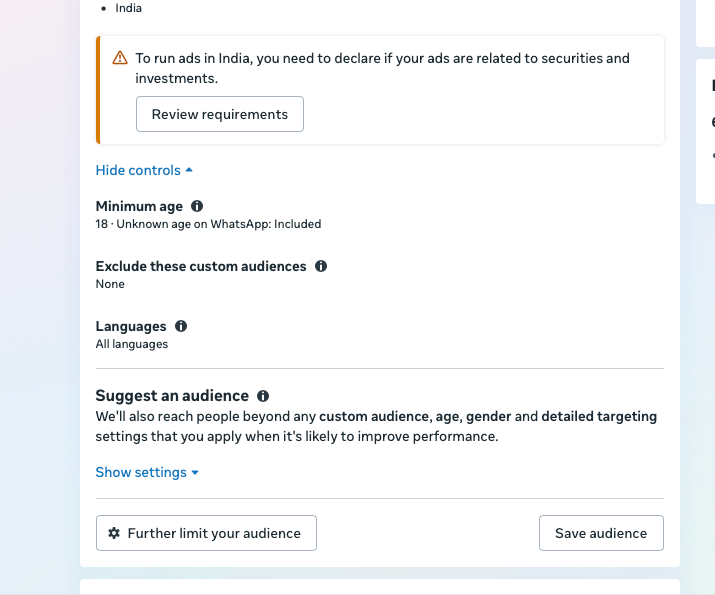
Open the relevant ad set in Ads Manager, expand the Audience controls if needed, and scroll to the bottom of the audience panel. In the supplied screenshot, the button appears below Suggest an audience.
Audience controls and audience suggestions
Audience settings fall into two groups: controls are limits, while suggestions guide delivery and can be expanded beyond. In the Advantage+ audience setup shown in the supplied screen, the fields are separated like this:
| Setting | How it is treated in this Advantage+ setup |
|---|---|
| Locations | Control |
| Minimum age (shown within the 18–25 range) | Control |
| Languages | Control |
| Custom audiences to exclude | Control |
| Age range | Suggestion |
| Gender | Suggestion |
| Detailed targeting: interests, behaviours and demographics | Suggestion |
| Custom audiences to include | Suggestion |
In the example described here, the minimum-age selector is limited to a range such as 18–25 and a maximum age cannot be set in the broad Advantage+ audience setup. Available fields can differ by campaign and account, so check the controls shown in your own ad set.
The three options inside “Reach the right audiences”
Click Further limit your audience to open the “Reach the right audiences” window. It has three options:
| Option | What it does | Can delivery go beyond your inputs? |
|---|---|---|
| Reach a broad audience (current setup) | Audience suggestions tell Meta whom to reach first. | Yes, when Meta expects that to improve results. |
| Reach your preferred audiences by applying value rules | Applies value rules so bidding can reflect how much selected groups are worth to your business. | People are not blocked; the bid treatment changes. |
| Reach a limited audience | Uses audience controls to limit who can see the ad for legal, geographic or business restrictions. | No, the chosen limits restrict delivery. |
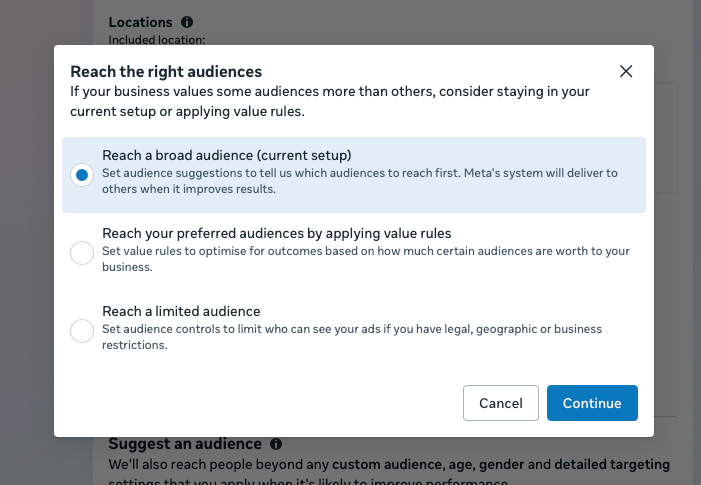
The first option is the default in the screenshot. The second and third options are the alternatives many advertisers have not explored.
Option 1: Keep the broad audience setup
Reach a broad audience (current setup) uses audience suggestions to tell Meta which groups to try first. The menu says the system may deliver to other people when it expects better results. Choose this when you want to guide delivery but allow Meta to explore beyond your inputs.
Option 2: Value rules are the middle path
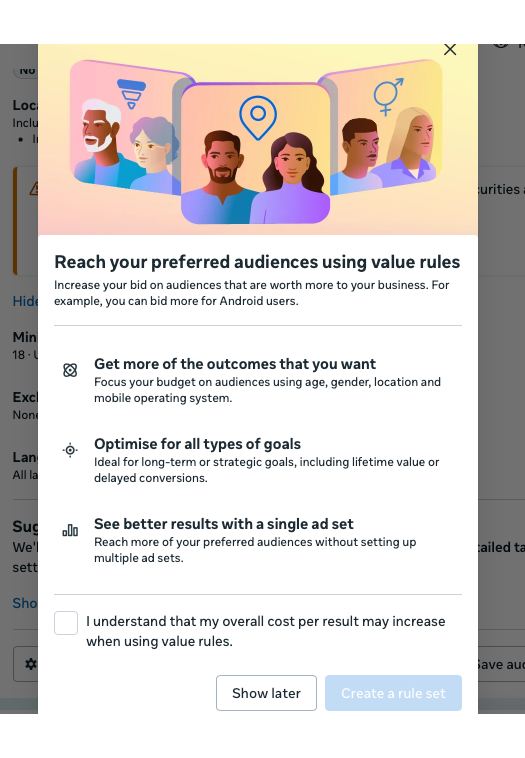
Value rules do not block people. They tell Meta how much more or less certain groups are worth to your business, and bidding is adjusted accordingly. The example in the screen is a higher bid for Android users.
The introduction says value rules can focus budget by age, gender, location and mobile operating system; support longer-term goals such as lifetime value or delayed conversions; and help reach preferred audiences with a single ad set. Before creating a rule set, you must acknowledge that your overall cost per result may increase.
What a value rule can use
- Age
- Gender
- Location
- Operating system
- Device platform
- Audience labels
- Some placements and conversion locations
The supplied guidance lists up to 10 rules in one rule set and up to 6 rule sets per ad account. Check the current limits in Ads Manager before relying on them, because product limits can change. If rules overlap, the first matching rule may determine the bid adjustment; people who do not match a rule receive the normal bid. Keep targeting as broad as your business allows when using value rules.
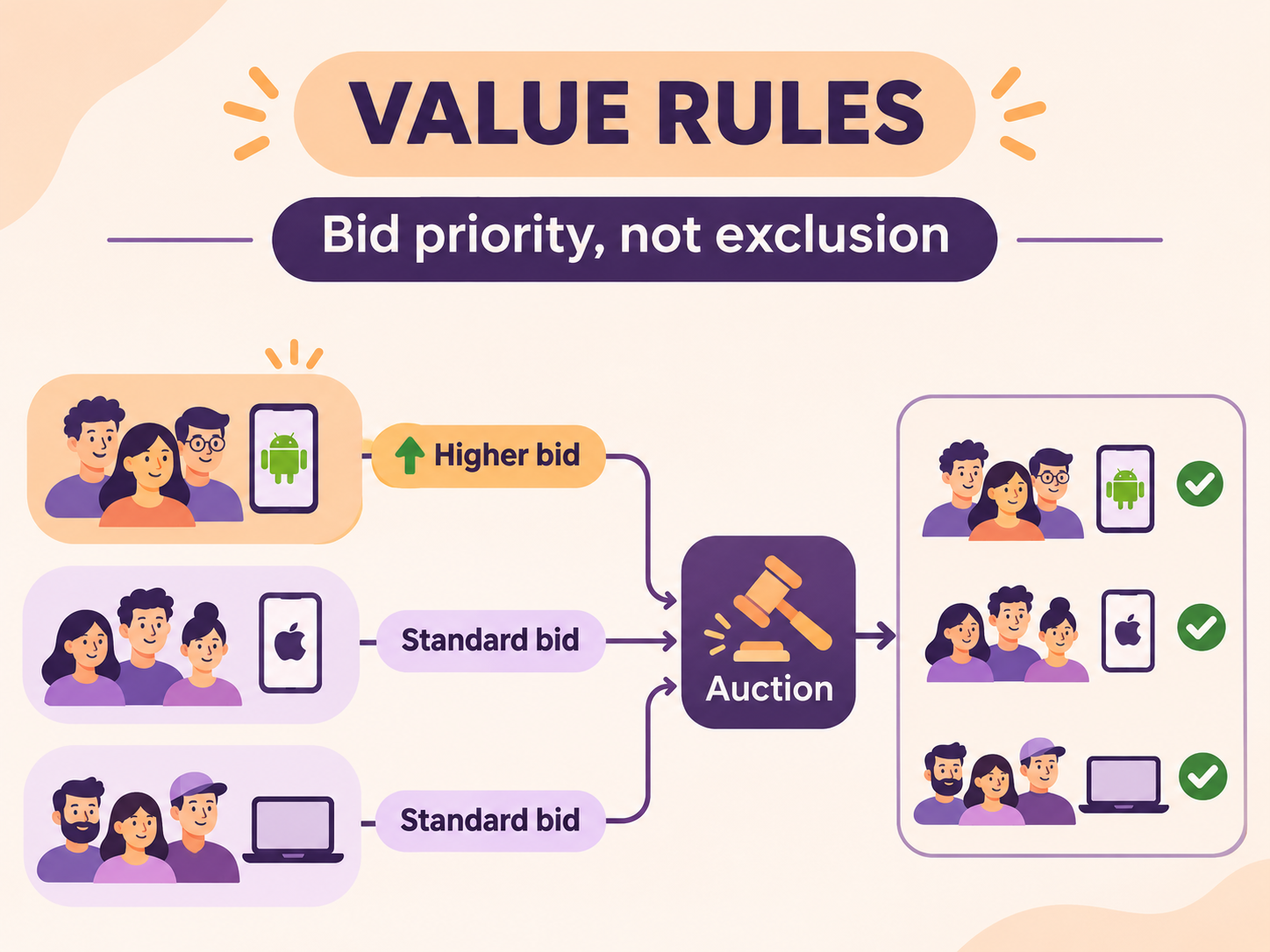
Use value rules when a group is worth more or less to your business. If you need to control who can see the ad, choose Reach a limited audience instead.
Option 3: Reach a limited audience
This is the option for stricter audience control. Choose Reach a limited audience and click Continue. Add the targeting conditions that must remain limits. For example, the supplied detailed-targeting screenshot shows Demographics > Education with the years 2026 to 2030.
Untick “Use as a suggestion”
Look beneath the detailed targeting selection for Use as a suggestion. Its helper text says Meta may also show ads to similar audiences when it expects that to improve performance. Leave the box unticked when you need the selected targeting to act as a limit. Tick it again if you want to use that selection as a suggestion.
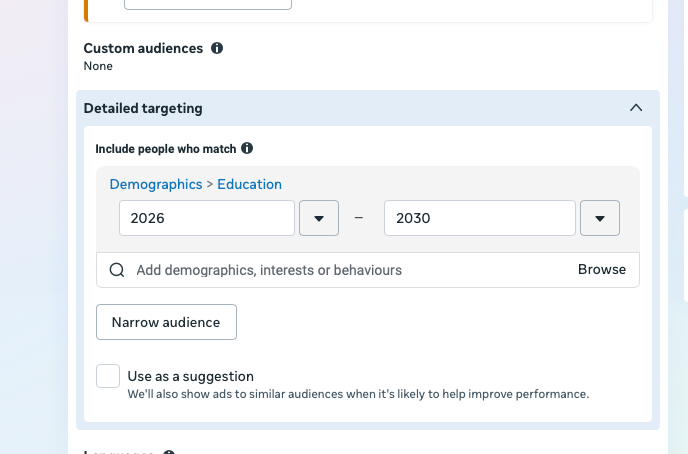
The Narrow audience button lets you add another condition people must also match. After you save, reopen the ad set and confirm the audience setting is still as intended.
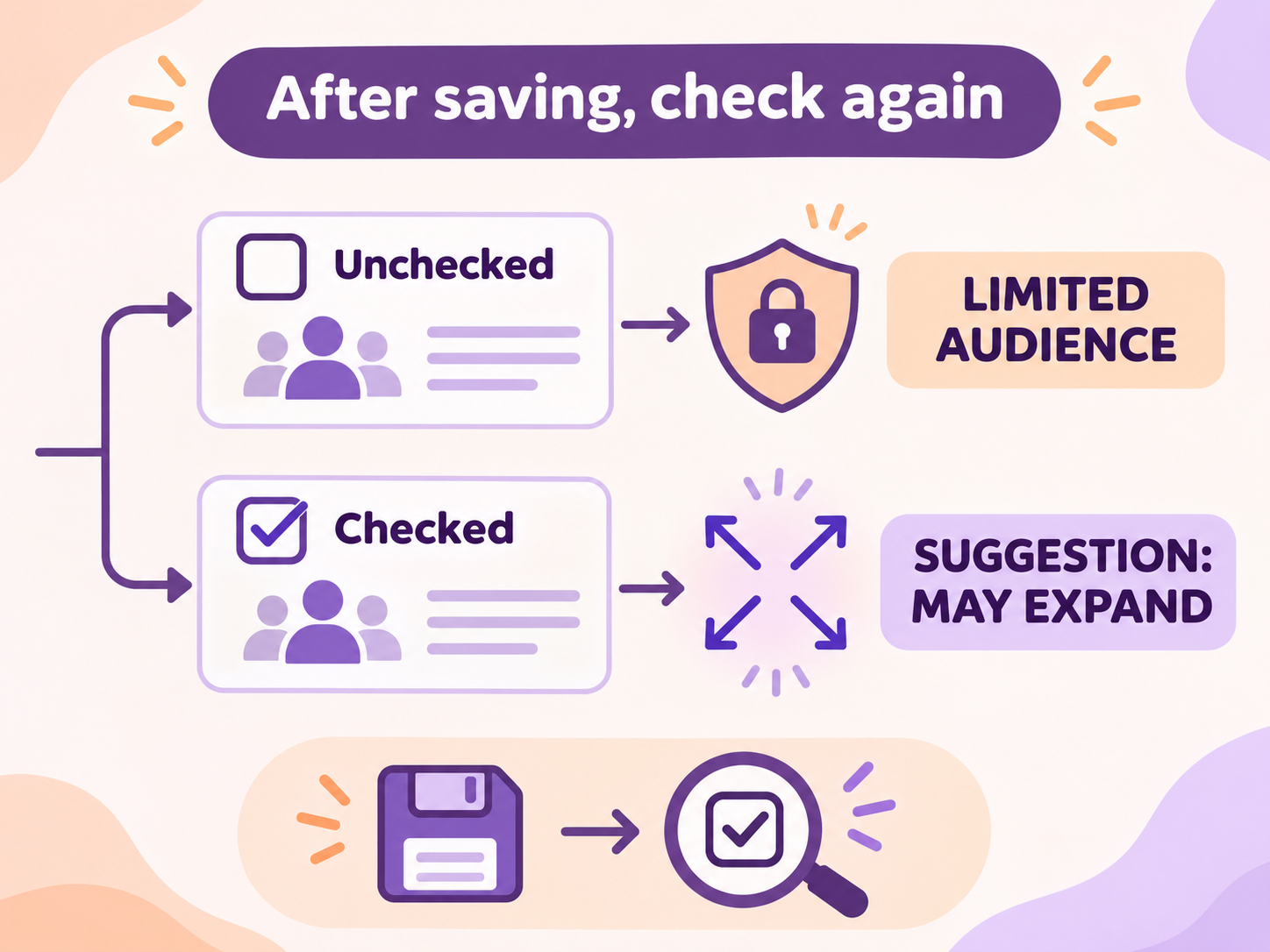
Step-by-step: use limited-audience controls
- Open the campaign and edit the relevant ad set.
- Go to Audience.
- Click Further limit your audience.
- Choose Reach a limited audience, then click Continue.
- Add the targeting criteria that must remain limits.
- Untick Use as a suggestion for each criterion you do not want Meta to expand beyond.
- Save the ad set, reopen Audience, and check that the change was applied.
Meta’s button names and available options can differ by account, campaign objective and country. If you do not see the same menu, check the controls available in your ad set and whether the targeting field is marked as a suggestion.
Custom audiences: the retargeting trap
A custom audience added in the main Audience section may be only a suggestion. Delivery can reach people outside it too. That means some ad sets that look like retargeting may not be strict retargeting. For delivery only to your own audience, add it under the limited-audience setup and make sure it is not being used as a suggestion.
For the full process, read how to run retargeting ads on Facebook (Meta Ads).
Which option should you pick?
| Your situation | Use |
|---|---|
| You must follow a legal or business restriction | Audience controls / Reach a limited audience |
| Some groups are worth more and you are willing to bid differently | Value rules |
| You want to guide delivery toward likely converters but allow expansion | Audience suggestions / broad audience |
Use a limited audience when only a defined group may see the ad, such as when a customer list or strict demographic restriction applies. Use value rules when a group is worth more or less but you do not want to block everyone else. Test before committing: a limited audience gives the system fewer people to find, so compare delivery and results with your normal setup.
Things to remember
- In the Advantage+ audience screen shown here, locations, minimum age, languages and excluded custom audiences are controls; many included audience inputs are suggestions.
- Recommended settings can be applied when duplicating a campaign. Check the Audience section after duplicating to confirm the setup you want.
- Check the Audience section again after saving to confirm your change was applied.
- Turning off audience expansion does not switch off every other Advantage+ feature in the campaign.
Common mistakes
- Assuming interests are hard rules in the default setup. They may be suggestions.
- Unticking the box but not checking the audience settings after saving.
- Adding a custom audience in the main section and assuming it guarantees retargeting-only delivery.
- Choosing value rules when you actually need to restrict who sees the ad.
- Skipping the value-rules cost warning. Cost per result may increase.
The takeaway
Advantage+ audience is the default in many setups, but it is not the only option. Reach a limited audience is the path for hard audience limits; value rules prioritize groups worth more or less; and suggestions guide delivery while allowing expansion. To keep your selected detailed targeting as a limit, untick Use as a suggestion and check the ad set again after saving.